APPLIES TO: Admins, Managers
Last Updated: July 10, 2026
How to create an Evaluation
- From your D-BAT Hub account navigate to Events on the left hand side
- Select the green plus sign in the right hand corner > New Event
- Go through all of the steps to create a fixed event
- Note: Event Evaluations are only available for fixed events
- On the Evaluations tab select Enable
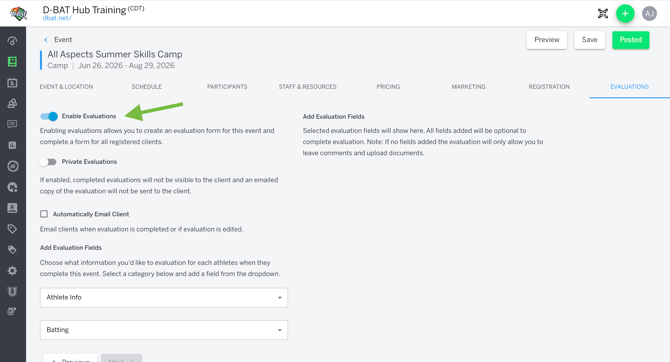
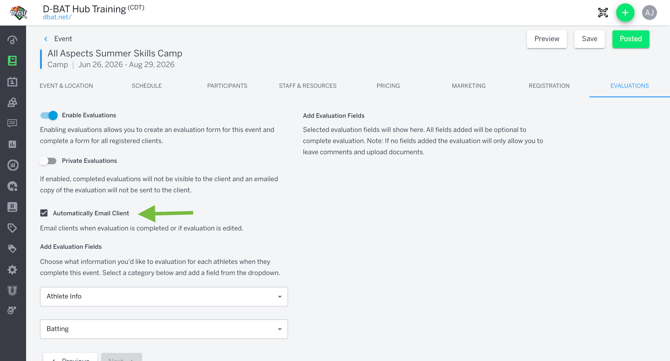
- If you want your clients to receive the completed evaluation via email select Automatically Email Client
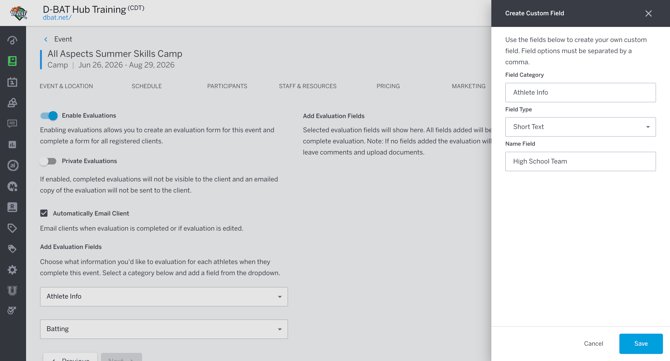
- Select Add Custom Field
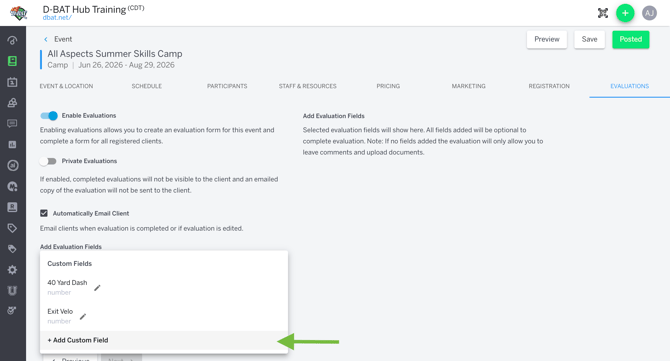
- Field Category: this will create a new category for fields relevant to that topic to live in
- Field Type: this will be the evaluation fields response type (example: multiple choice vs number)
- Name Field: the name of the field that will populate on the evaluation (example: exit velo)
- Select Save
- Repeat until all the fields you want to add to the evaluation are complete
Enabling Private Evaluations
Enable private evaluations for tryouts or assessments that you don't want to share with your athletes just yet.
- On the Evaluations tab select Enable Evalutions
- Under Enable Evaluations, toggle Private Evaluations to on
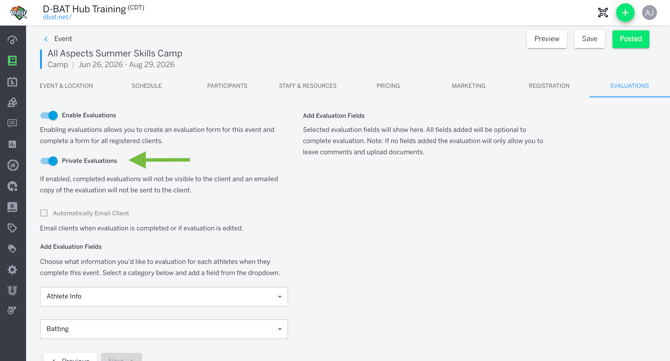
- When Private Evaluations are toggled on:
- Automatically Email Client will be disabled so clients will not receive an email copy when their evaluation is completed
- Clients will not be able to see the evaluation on their client profile
- Admins will not be able to manually email completed evaluations to clients
- Note: You can toggle private evaluations to off at any time for any event. When toggled off, Automatically Email Client will be enabled, clients will see the evaluations on their client profile, and admins will be able to manually email any completed evaluations for that event
Filling Out Event Evaluation
- Go to Events tab on your left hand navigation
- Search for the event and select it
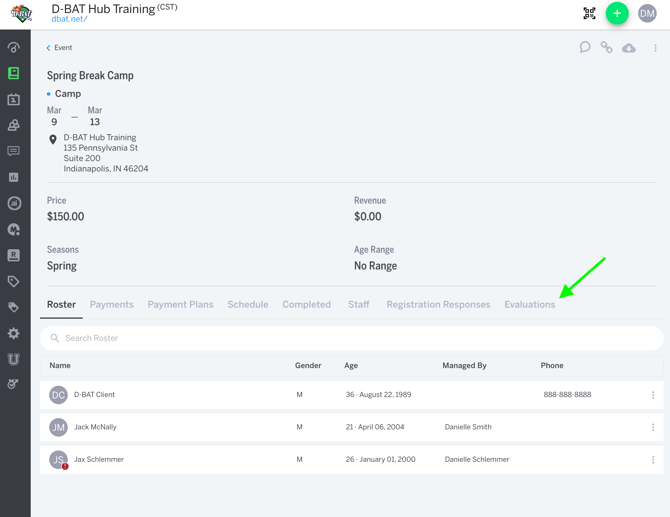
- Navigate to the Evaluations tab
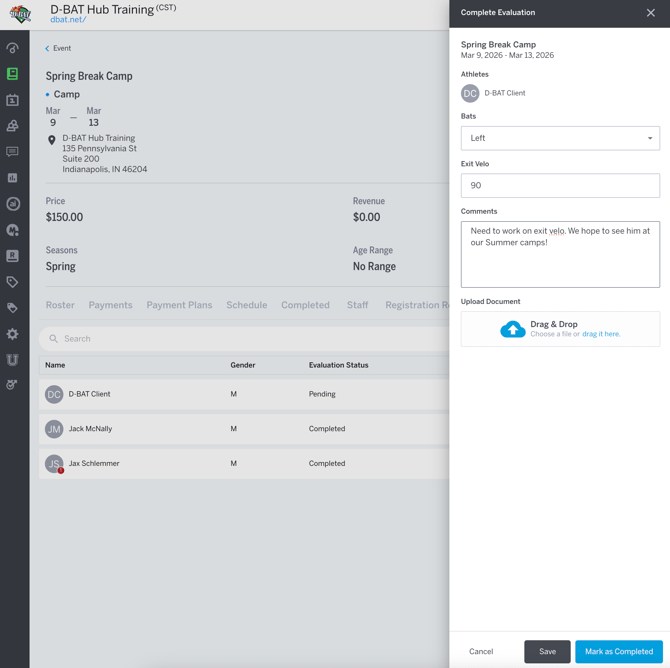
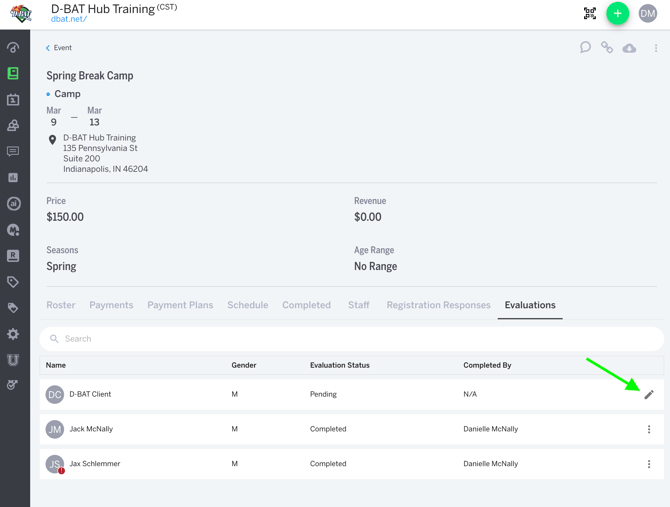
- Select the pencil icon to start filling out the evaluation
- Enter answers on each field
- Enter comments (optional) that you want the athlete/adult to be aware of
- Note: the client will see these comments
- Upload document: if you took a photo and want to upload it, this will be sent to the client!
- Select Save if you want to save as a draft
- Select Mark as Complete if you're finished the evaluation and are ready for it to be available to the client