
APPLIES TO: Admins
Last Update: Sep 22, 2026
Each level of staff profile has a preset level of actions. With the staff permissions tab, you will be able to toggle on/off each staff members access to every feature inside the software.
Note: Front Desk Staff must have access to the Balances Report to use Quick Pay from the calendar.
How to Edit Staff Permissions
- From your D-BAT Hub account locate Contacts > Staff
- Select the employee whose permissions you'd like to update
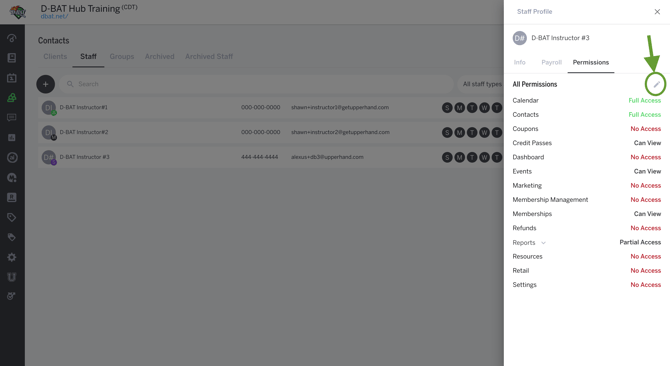
- Select the Permissions tab
- Select the Pencil Icon to edit their access
- No Access
- They will not be able to see this functionality
- View Only
- They will be able to see the functionality but cannot take action
- Example: View Only Events - they can see the events, view the roster, etc but cannot edit or create new events
- They will be able to see the functionality but cannot take action
- Full Access
- Can take all actions that an admin can
Important to Note
- Only admins can view/edit permissions
- Your current staff permissions will not change with this release
- If your staff do not have access to the Orders Report they will not see Orders on the client profile
Default User Permissions
These are the list of default features each staff member will have access to when they accept their invitation to the Hub.
Admin - Highest Level of Access
- No restrictions, can see it all and do it all
Manager
- Has access to all admin features except:
- Any reporting, including AI reports
- Business Settings
- Payroll tab on the staff profile
- Revenue on the admin event view
Staff
- Events
- Remove Clients from Events
- Send marketing emails and message attendees
- Export attendance and registration lists
- Calendar
- Check Clients In
- Add Staff and/or Resources to scheduled sessions
- Quick Schedule and Quick Pay on calendar
- Create Custom Calendar View
- Reschedule a lesson
- Contacts
- Reports
- Access Balances Report and personal Payroll Report
- Point Of Sale (POS)
- Check Clients out via Point of Sale (POS)
- Payments
-
- The ability to pay down a client's balance
Instructor
-
They can:
- See their own personal calendar
- Set their own availability
- View their own payroll
- They cannot:
- Access point of sale
- Book clients
- Check clients in
- Charge clients or see their contact information